
The tour
See Settlo in action.
An automatic walkthrough in nine chapters, lasting about three minutes. It uses real app screenshots, with tap markers showing each action. Jump to any chapter at any time.
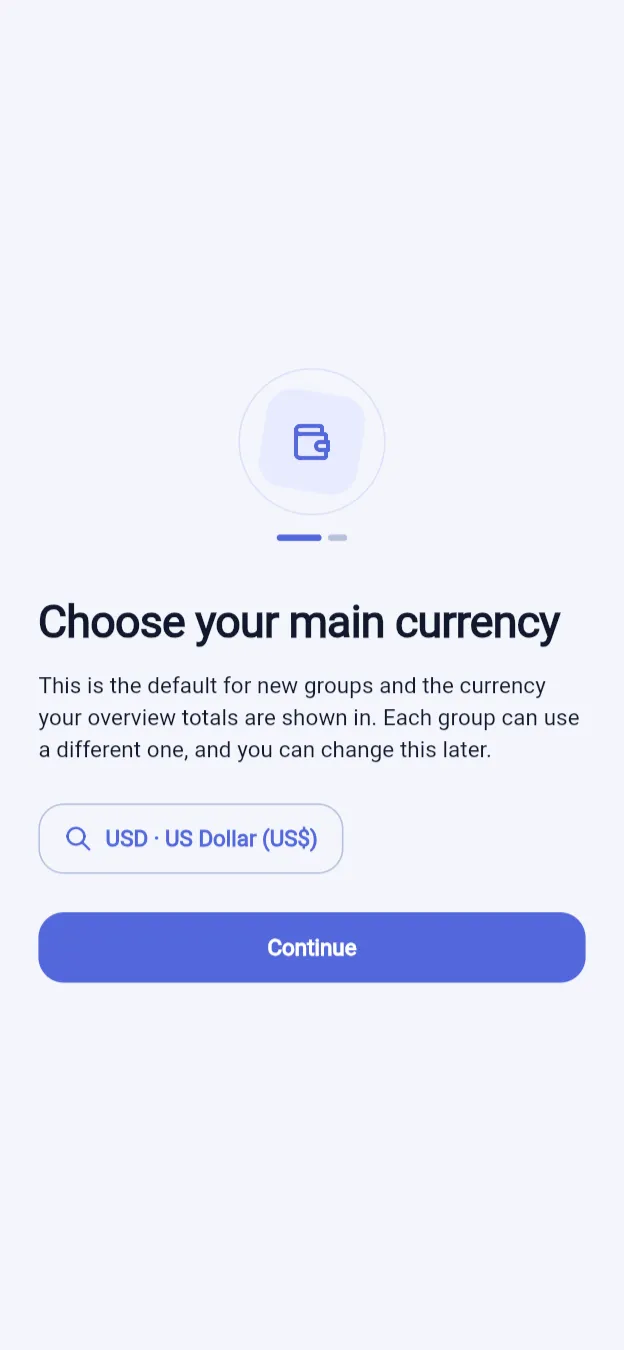
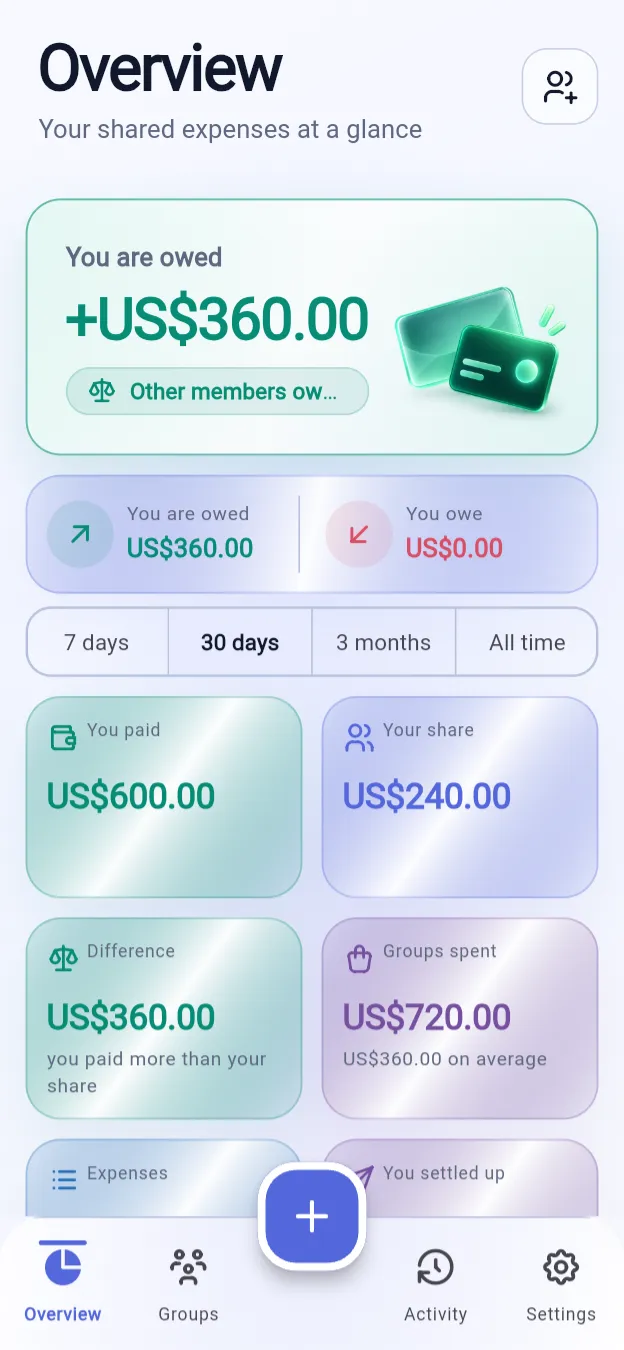
Start with a currency and a display name. No email address, password or account needed. This walkthrough shows the app's actual screens.
- Start with a currency and a display name. No email address, password or account needed. This walkthrough shows the app's actual screens.
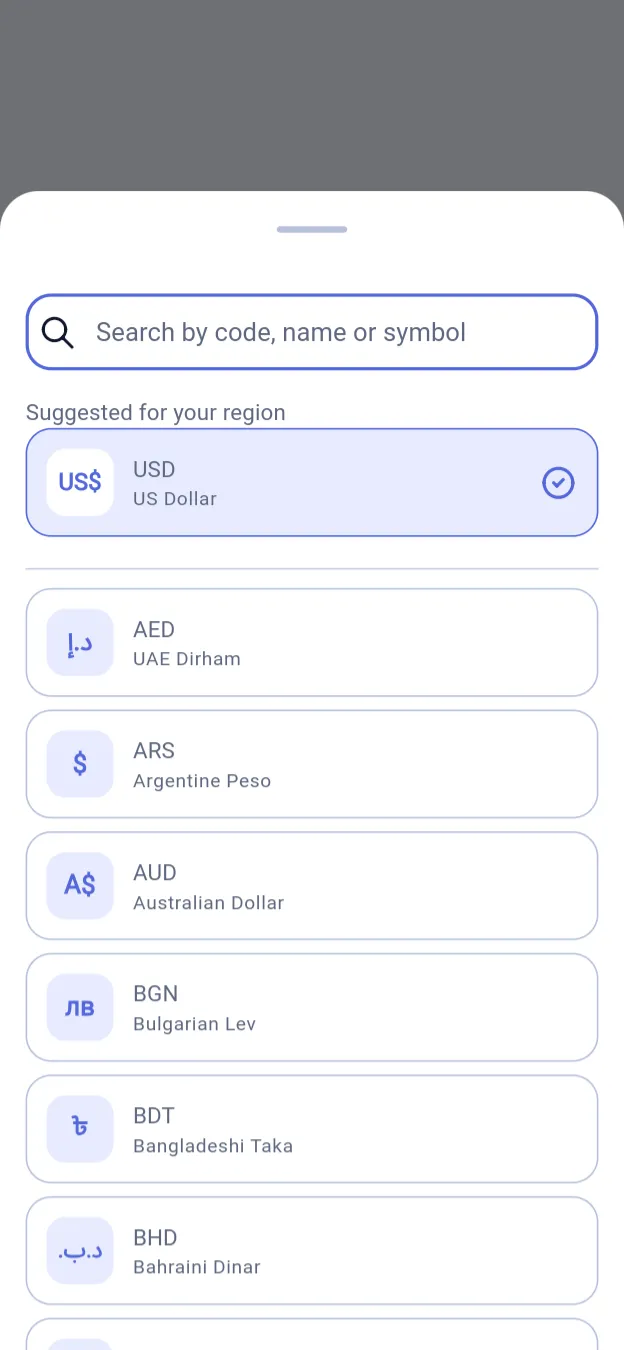
- Search the available currencies by code, name or symbol. Your main currency is used for Overview totals; each group can have its own.
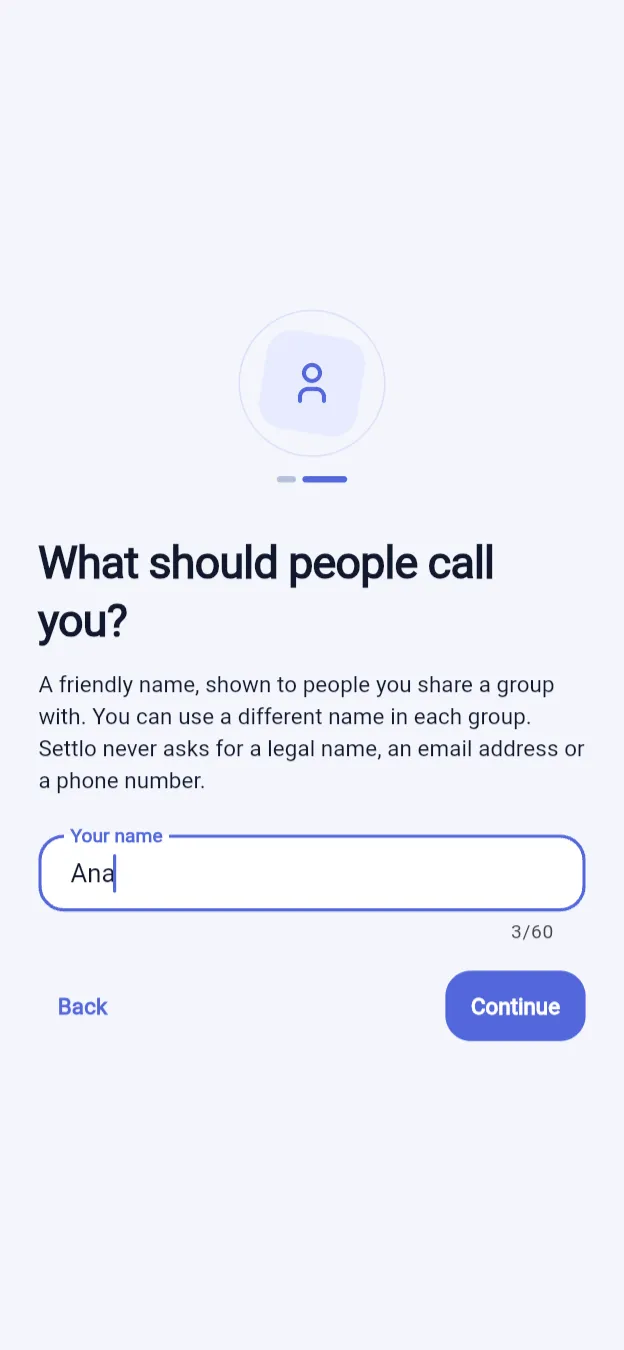
- Choose a name so the other group members know who you are. A nickname is fine; no email address or password is needed.
- Give the group a name and a colour, then set its permissions. By default, members can record expenses paid by someone else.
- Add people by name even before they install the app, and include them in splits straight away. They can join later using an invitation linked to their name.
- Here are three people, including you. Ana owns the group. Ben and Cara have been added by name; they do not need the app yet.
- The amount field is ready when the expense screen opens. Start by entering what was paid.
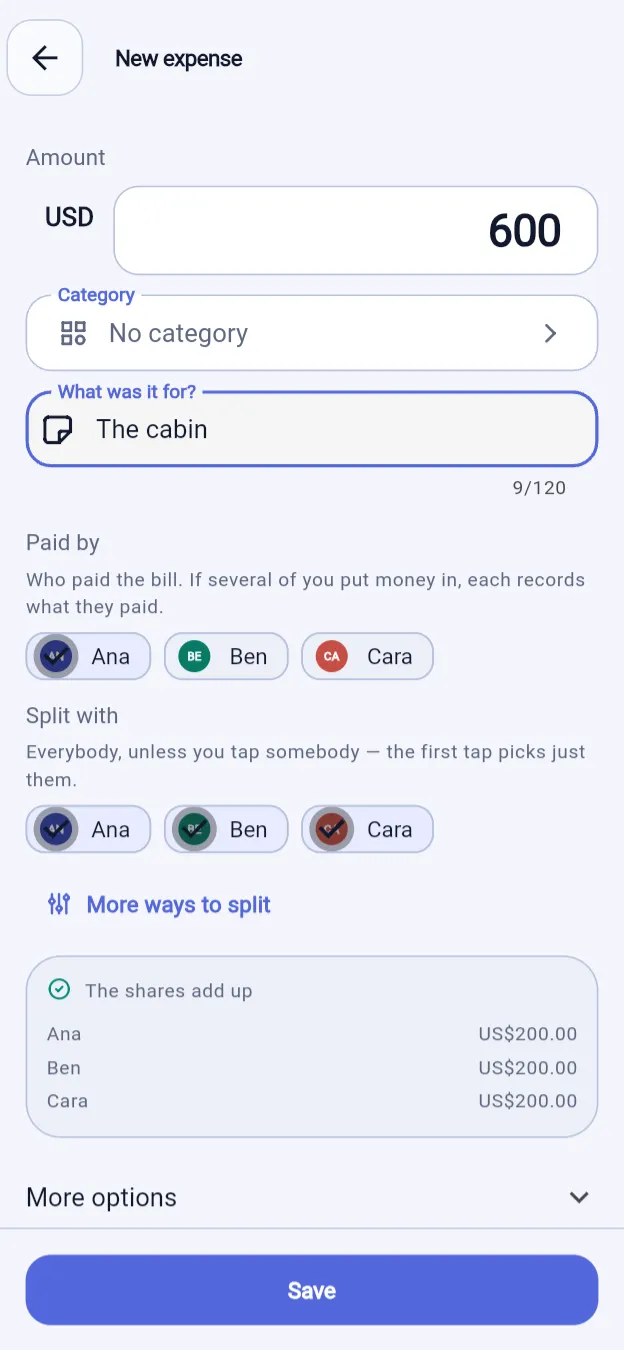
- US$600 for the cabin. The currency button shows how this expense will be recorded. Changing the selection does not convert the amount.
- Add a category and a description, then check the split: US$200.00 each for Ana, Ben and Cara, making exactly US$600.
- You can record a payment made by someone else when the group's permissions allow it. Choose the person who actually paid.
- Ben paid for the groceries. Saving the expense records him as the payer and updates everyone’s balance.
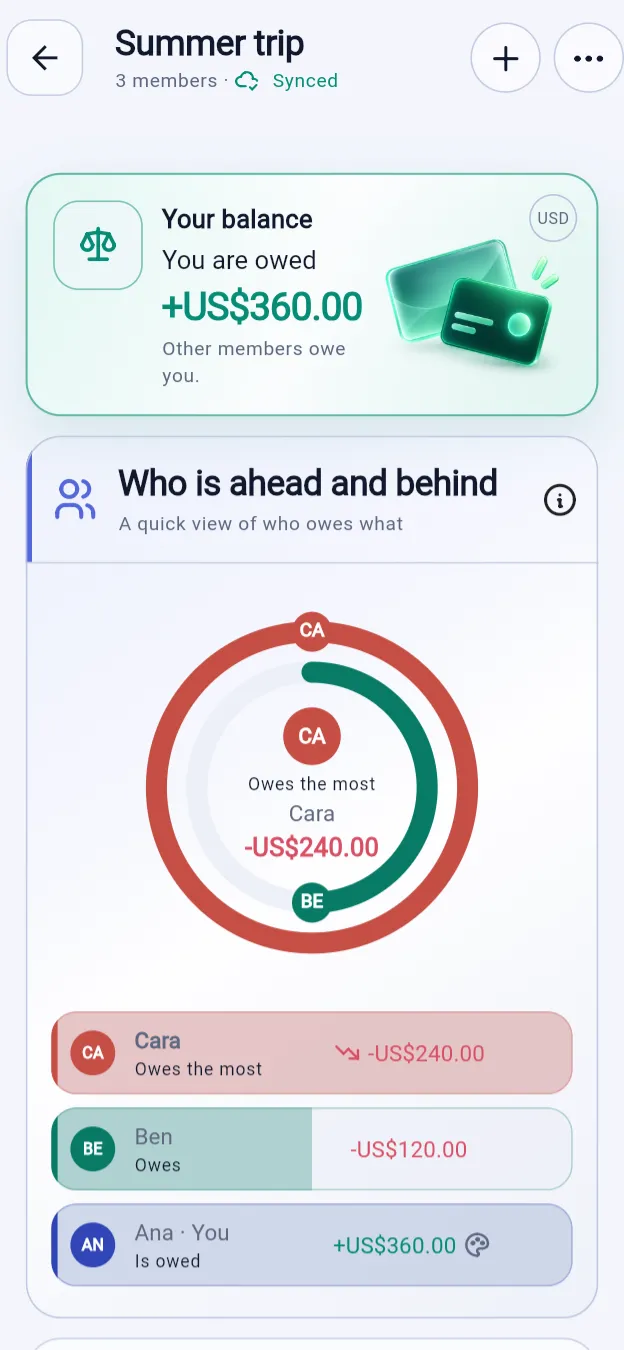
- You are owed US$360.00, calculated from the two recorded expenses. No spreadsheet needed.
- Each ring represents someone who owes money. The largest debt is the full outer ring; the other arcs show their debts in proportion to it.
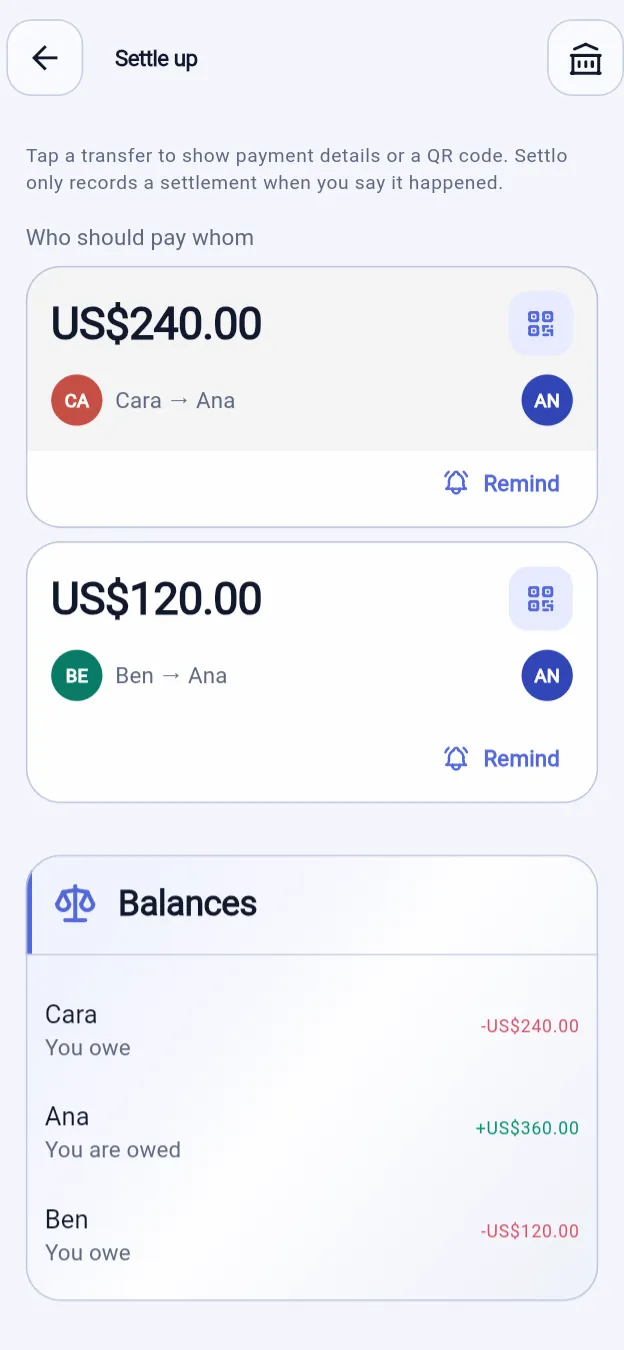
- Three people, two repayments. Settlo suggests transfers to clear their balances.
- Send a reminder for a payment owed to you in the settlement plan, at most once a day. The notification does not show the amount.
- Settlo records payments; it does not make them. It never requests a card to settle a debt or marks a payment as complete on its own.
- In this separate payment-details example, Ben owes Ana US$150.00. From his phone, he asks her for payment details; the request itself contains no bank-account details.
- Ana has not shared her bank details yet. They will only be sent if she approves the request on her phone.
- On Ana's phone, the request shows that Ben wants to pay her, what the payment is for and the amount. She can approve or decline.
- Ana chooses the bank account and currency for this reply. Her bank details are not stored in the group.
- Only Ben receives the reply: a payment QR code, bank details in text and a notice that the reply will be removed from Settlo after three days. He can scan the code with a compatible banking app.
- The taxi expense stays recorded in euros. The dollar amount alongside it is an estimate, with the exchange rate and its date shown.
- The reference rate may differ from the rate applied to your payment. A member can propose another rate — here, 1 EUR = 1.10 USD — for the group to vote on.
- Ben sees the proposal, both voting options and the count. An approved rate updates conversions, not the original expense amounts or currencies.
- A bring list keeps track of who is bringing what. You do not need to add prices.
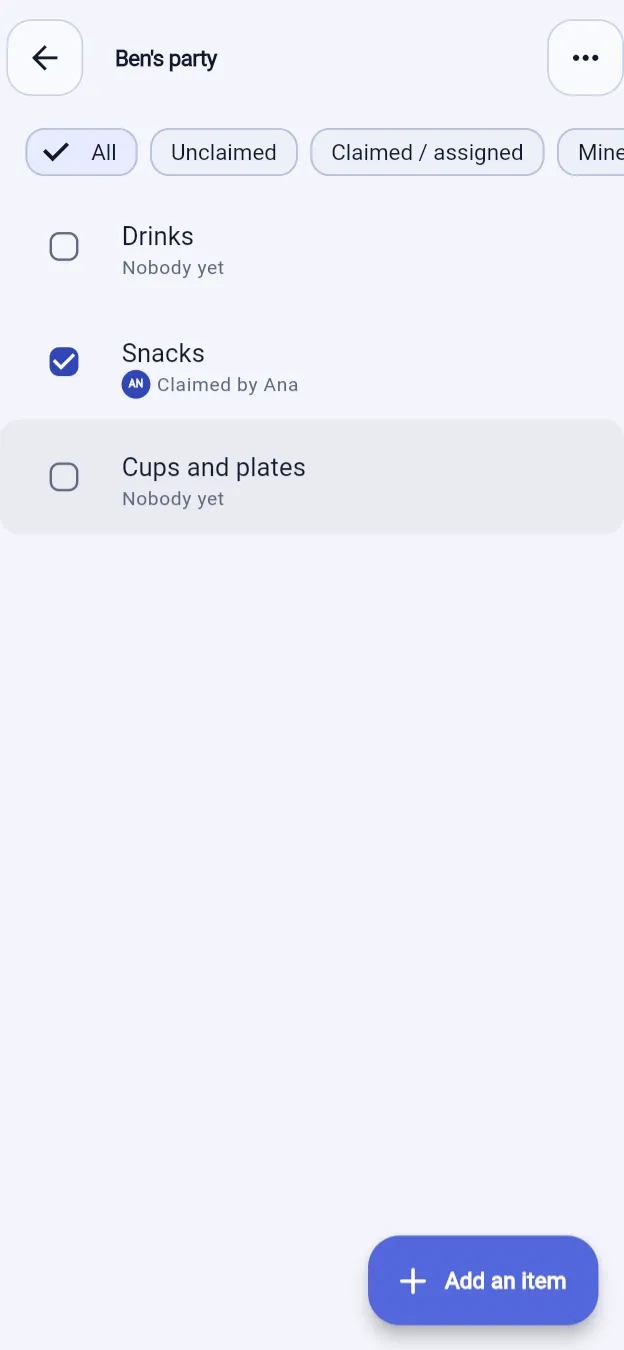
- Three items, with no one bringing them yet. Tap an item to volunteer.
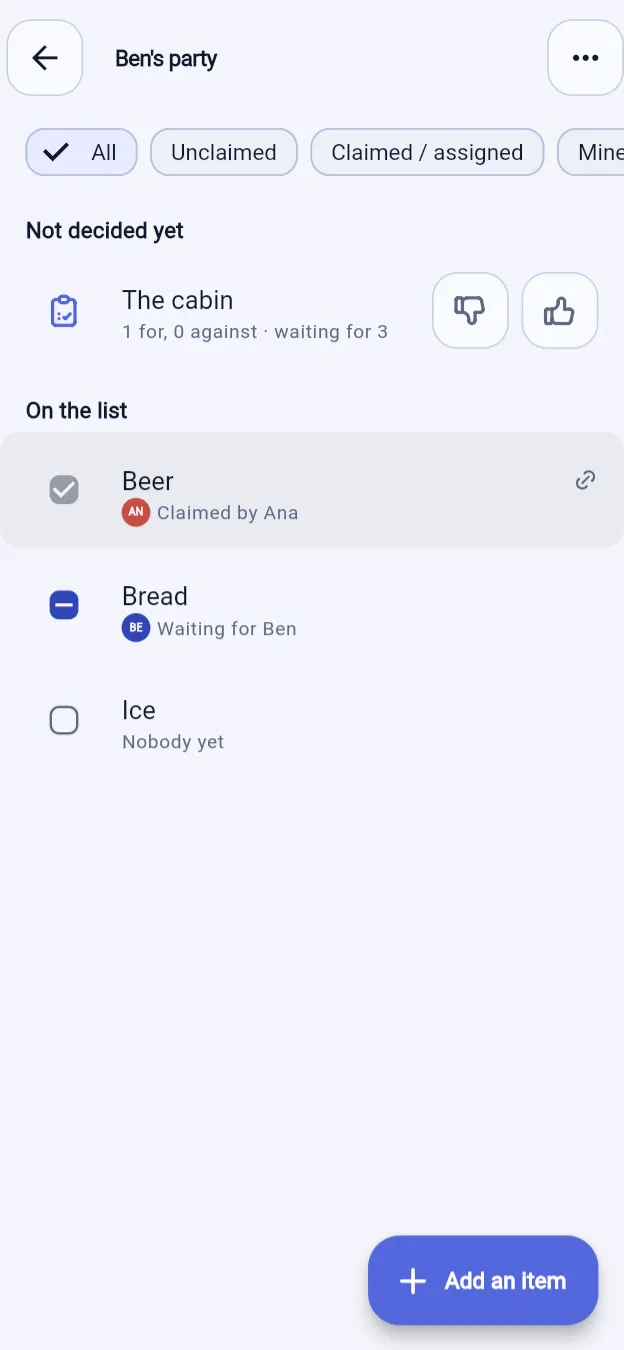
- Your item now has a tick in your group colour and your name underneath. You do not have to rely on colour alone.
- Members can add items when the list's permissions allow it.
- With voting enabled, new items wait for approval. A result is final once the remaining votes cannot change it.
- Ask someone else to bring an item; they decide whether to accept.
- The checkbox shows a dash while Ben’s answer is pending. He has been asked to bring the item, but has not accepted yet.
- A party can start with just a list. Balances and prices appear when settling is enabled for the group.
- Enable settling, then record an item's purchase as an expense. You are recorded as the payer, and its cost is shared with the selected people.
- US$120 for drinks, split four ways: US$30 each, totalling exactly US$120.
- The saved item links to its expense. The cost is now included in the group's balances, without entering it twice.
NeuraTiM Settlo
Share expenses without an account.
Keep shared costs clear on a trip, at home or on a night out. No sign-up or email address needed. Your data is stored on your device; use a private invitation link to share a group with others.
- No account needed
- Works offline
- End-to-end encrypted
- 18 languages
- Free
How it works
Three steps. No sign-up.
Choose a display name and a main currency on your device. A nickname is fine — no email address, phone number or password required.
Step 1
Create a group and add people
Plan a trip, share household costs or organise a weekend. Add people by name; they do not need the app to be included. Choose the group's currency when you are tracking expenses.
Step 2
Add expenses as you go
Enter the amount and category, then choose who paid and who shares the cost. Split equally or use another method to match what each person should contribute.
Step 3
Check balances and settle up
Balances update when expenses are saved. Use the settlement plan to arrange payments, send reminders or request payment details. Pay outside Settlo, then record the payment in the app.
A look inside
Real app screens. No mockups.
These screenshots show the app running in a phone-sized layout, so you can see what it is like to use.
Group · Balances
Who owes what, at a glance
Each person who owes money has a ring, with the largest debt on the outside and initials on the arc. A text list below shows who owes and who is owed, so colour is not the only clue.
Group · New expense
Record an expense with just a few details
Enter the amount, category, payer and participants. Frequently used categories appear first. Open “More ways to split” when needed; it stays hidden when only one person shares the expense.
Group · Settle up
A clear plan for repayments
See suggested transfers to clear the balances. Select one to remind someone who owes you, ask the person you owe for payment details, or record a completed payment. Settlo does not transfer money or require a card to settle up.
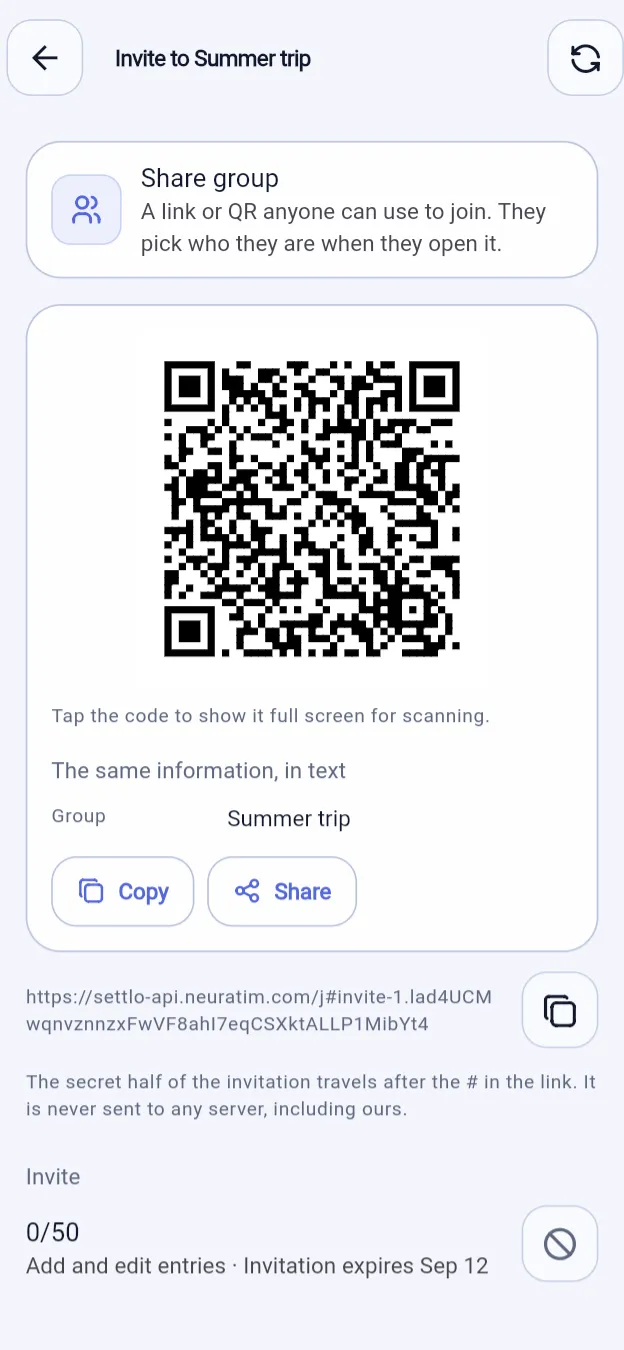
Group · Invite · Mobile app
Share a link or show a QR code
Invite people to the group, or create an invitation for a specific member and their existing history. Choose the permissions granted to new members. Only the owner can delete the shared group. Invitations and sharing require the mobile app.
Bring lists
Sharing is about more than money.
A party, a trip, a gift for a friend: sometimes you just need to know who is bringing what. Choose “Group with bring list” to get organised without tracking money. You can turn on settling later to add prices and share costs.
Choose what you'll bring
Everyone sees the same list. Tap an available item and choose “I'll bring it”. Two people cannot claim the same item, so you are less likely to turn up with three bags of ice and no drinks. You can also ask someone else; they can accept or decline.
See who is bringing what
Each claimed item shows the person's name and a tick in their group colour. Filter the list to see what still needs a volunteer, or just the items you are bringing.
Let the group decide
Enable voting to let the group approve new items. Proposals appear in a separate section with the vote count and both choices. The result is final as soon as the remaining votes cannot change it.
Add costs when you need them
With settling enabled, add prices to the group’s lists and record purchases as linked expenses. Changed your plans after buying something? Call off the item: it stays crossed out, and its linked expense no longer affects balances. This does not refund the purchase.
Bring lists use the same sharing link and encryption as their group. The server can see that a list exists, but cannot read its items.
Features
Everything you need to share expenses.
No social feed, friend requests or online profile. Settlo focuses on who paid and who owes what. These six features cover the essentials; the guide explains the rest, screen by screen.
Split costs your way
Split equally, by exact amounts, percentages, shares or receipt items, including tax and tips. Set one person’s contribution and divide the rest equally, or leave someone out of an expense. Record refunds with a dedicated option — no negative amount to enter.
Include people without the app
Add someone by name and include them in splits straight away. They can join later with an invitation linked to that name, keeping their existing expenses and balance.
Keep original currencies
Foreign-currency expenses and debts stay in their original currency. Converted totals are estimates, using either a published reference rate or a rate approved by the group. Changing the rate does not rewrite the original expenses.
Make settling up simpler
Get a plan for who should pay whom. Send a reminder at most once a day, or ask the person you owe for a payment code and readable bank details. Bank details are not stored in the group. You pay outside Settlo, then record the settlement.
Bring lists, with optional costs
Choose what to bring from a shared list. Each item can be claimed by one person, and rejected proposals remain crossed out. With settling and list prices enabled, record purchases as linked expenses and split their costs within the group.
Keep going offline
Add expenses even without a signal. In a shared group, “Saved on this device” means changes are waiting to sync when you reconnect. If two offline edits conflict, the earlier edit takes precedence on every device, and the other version stays in the history.
Privacy
Your invitation key is not sent to our server.
The part of a URL after # is its fragment. Browsers do not include it when requesting the page, so Settlo puts the invitation key there. Our server can see group and sync metadata, but cannot decrypt group names, amounts or notes. Share invitation links carefully: they grant access.
An example invitation link
https://settlo-api.neuratim.com/j#eJ4nQ2vTaKQ.BqOT15sRPikqZfm46z9SWPyk3Mb8HrLxUu2cNvA0Tge
Page address. The invitation key is not part of this request.
Secret key. Not included when the browser requests the page.
No account needed
No email address, phone number, social login or account password is required. There is no online account to manage, but invitation links still need to be kept private.
Bank details are not group data
Your bank-account holder name and account details stay on your device until you approve a payment request. The reply goes only to the requesting device, not the group. It is removed from Settlo after three days, or sooner when the settlement is recorded or the group is archived or left. Payment codes are excluded from exports and backups.
Encrypted before syncing
Group content is encrypted on your device with AES-256-GCM. The group key is shared with invited members, not the server, which stores only encrypted group content.
No tracking
No analytics or attribution SDKs, third-party crash reporting, advertising identifiers or feature-usage counters. Groups you keep local are not uploaded for sharing.
Invitations expire
General group invitations expire after three days; personal invitations after one day. They are then deleted from the server and can be revoked earlier. Each invitation uses a 256-bit secret designed to resist guessing.
Server data has an expiry date
An inactive, fully settled group is deleted from the server after 30 days. An inactive group with outstanding debts gets three months, followed by a warning and a final week. A group with no members is deleted after seven days.
Your local history stays with you
Deleting the server copy does not delete the expenses, notes or lists on your device. You can still view and export them. Leaving a group does not erase other members' history; removing your own archived copy is a separate action.
Export and back up your data
Export a group or create a backup protected by your own passphrase. You keep the file and decide where to store it.
Get Settlo
Try it in your browser. Use the mobile app to share.
Explore expense tracking in the browser without an account. The mobile app adds shared groups, syncing and notifications.
Browser demo
Explore expenses, splits and charts with data kept in this browser. The demo does not share groups or sync your entries. Shared groups and notifications require the mobile app.
Try the demoAndroid
In closed testing on Google Play. Join the tester list and it installs like any other app.
iOS
Share groups by link or QR, sync across devices and receive notifications. The iPhone and iPad app is not yet available on the App Store.
Free, without a catch
All features are free, including syncing and encryption. No ads, trackers, analytics or required subscription. Donations are optional.